
Extract Emails and URLs: Preserve Text and Review the Results
Two worked extraction examples with exact domain filtering, preserved spelling, URL transformation choices and honest syntax limits.

Written by Saurabh Kumar
Founder & maintainer of TextToolbox
- Published:
- Last edited:
You can extract supported email and URL candidates from pasted text, then review the list before copying or saving it. Keep the source alongside the results: an extractor can find a candidate without proving that an address receives mail or that a link is safe.
This guide uses the current email extractor and URL extractor. Both accept up to 1,000,000 UTF-16 code units. They scan text rather than reading PDF files, opening inboxes or parsing a complete HTML document.
Reviewed October 11, 2026. The examples below were checked against the extraction helpers in Node; browser downloads and spreadsheet imports were not tested.
What kind of text do you have?
Start with selectable text. For a scanned document, obtain readable text with an OCR workflow and inspect it first. A missing character or a line break inside an address can change what the scanner sees.
- Plain text or an exported message: paste a small representative sample first, and watch for wrapped addresses, surrounding punctuation and duplicates.
- PDF text: copy the selectable text and compare it with the document. The tools do not open files or perform OCR.
- Raw HTML source: use these scanners only for text candidates; there is no entity decoding, attribute selection or relative-link resolution.
- A structured contact database: prefer its native field export when available. Text extraction does not keep names, IDs or relationships.
Use a document or database parser when you need structure. Finding a URL string inside source code is different from identifying an outbound link in an HTML anchor.
Worked example: preserve email spelling and filter an exact domain
Paste this sample into the email extractor:
John@Example.COM John@example.com john@example.com
support@sub.example.com owner@notexample.com
élise@example.com a..b@example.com o'hara@example.com
Leave duplicate removal on. The supported candidates, in source order, are:
John@Example.COM
john@example.com
support@sub.example.com
owner@notexample.com
o'hara@example.com
John@example.com is removed because its local part matches John exactly and its domain matches without case. Lowercase john remains separate. The scanner skips the whole internationalized élise token and the malformed repeated-dot local part. It does not silently return lise@example.com.
Now enter example.com in Exact domain filter. The visible list becomes:
John@Example.COM
john@example.com
o'hara@example.com
Exact domain: example.com

Three visible candidates, one selected for Copy
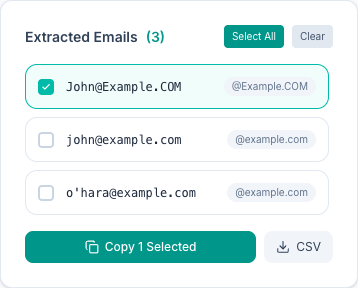
Neither sub.example.com nor notexample.com matches the complete domain. Select John@Example.COM to copy just that row. Clear the selection to copy all visible rows. Editing the input, duplicate option or domain filter clears selection and stale clipboard feedback.
What the CSV includes
CSV exports all visible filtered candidates, regardless of row selection. For the filtered example its payload is:
"Email"
"John@Example.COM"
"john@example.com"
"o'hara@example.com"
The exported records use CRLF endings and quoted fields. Quoting preserves CSV field boundaries; it is not a guarantee that every spreadsheet treats imported text as inert. Choose text import settings appropriate to your application and retain the source list.
Email extraction is deliberately narrower than mailbox validation
The supported subset is an ASCII, unquoted dot-atom local part plus dot-separated ASCII domain labels. Quoted local parts, internationalized email addresses, address literals, obfuscated text and HTML entity decoding are outside this scanner's scope. Surrounding punctuation at the end of a domain-like token is treated as prose.
RFC 5321 section 2.4 distinguishes local-part case from domain case. The tool preserves spelling and uses that distinction for deduplication. It does not decide whether a particular provider considers two spellings the same mailbox. No DNS, inbox or delivery check is performed.
Worked example: URLs retain query and fragment by default
Paste this into the URL extractor:
HTTPS://Example.com/A?x=1#part
https://example.com/A?x=2#other
www.sub.example.com/path
https://example.com/a(b)))
/relative/path
With duplicate removal on and the other transformations off, the first four lines remain exactly as found. The relative path is not scanned. Case differences remain distinct; the tool does not serialize every result into a normalized URL.
| Option | Result | Why review it |
|---|---|---|
| Default | HTTPS://Example.com/A?x=1#part | Original spelling, query and fragment stay intact. |
| Remove query | HTTPS://Example.com/A#part | A query can select a resource, not just track a visit. |
| Remove fragment | HTTPS://Example.com/A?x=1 | A fragment can select a location within a resource. |
| Both | HTTPS://Example.com/A | Deduplication runs after these transformations. |
Clean trailing prose punctuation changes the fourth candidate to https://example.com/a(b). It removes excess trailing closing parentheses while retaining the balanced pair. The option can also remove valid trailing URL punctuation, so enable it only when that punctuation belongs to the surrounding sentence.
HTTPS only keeps explicitly HTTPS candidates, including the uppercase scheme in the first line. It excludes HTTP and bare www. candidates. This is a scheme filter, not a phishing or safety test. Hostname grouping keeps the full host, including www.sub.example.com; it does not calculate the registrable domain.
Copying a result is separate from opening it. The scanner checks supported candidates using URL parsing without visiting the destination. The WHATWG URL Standard describes URL parsing and serialization; HTML parsing and base-URL resolution are separate tasks. A pasted & stays literal here.
Review the result before handing it off
Compare the source with the output, especially after deduplication or optional URL transformations. TXT download saves the visible URL list, one result per line. Email CSV and URL TXT do not include the surrounding sentences or contact relationships.
If Copy reports failure, select the results manually. If download fails, copy or select the list and save it in your editor. These components perform extraction locally, which does not establish a blanket site-wide confidentiality promise about analytics, extensions or your destination application.
For quoted contact tables where you need a specific column instead of candidate scanning, use the CSV column workflow. Keep a representative sample with your chosen settings so a later extraction can be compared without guessing what changed.
Recommended articles
Productivity
How to Remove Emojis from Text Without Losing Names
Choose a sequence-aware emoji filter, preserve multilingual names and text symbols, and compare tested whitespace settings before copying a reduced draft.
Productivity
How to Extract and Reorder CSV Columns Without Losing Field Data
Follow tested CSV extraction and column-swap examples. Preserve quotes, spaces and identifiers, choose the right output and avoid unsafe line-based cleanup.