
How to Remove Duplicate Lines from a List (3 Free Methods)
Compare three duplicate-removal workflows with tested first-occurrence, case, edge-space, blank and Unicode examples. Keep meaningful record structure intact.

Written by Saurabh Kumar
Founder & maintainer of TextToolbox
- Published:
- Last edited:
To remove repeated lines, first decide what counts as the same item. For a plain one-item-per-line list, keep the first original occurrence and choose case, edge-space and Unicode comparison rules deliberately. If your data contains CSV fields or related columns, use a record-aware workflow instead.
Reviewed October 11, 2026 against the current line tools. The worked example is synthetic test data; it is not a subscriber or customer list.
What counts as a duplicate?
Four approaches come up, and this guide covers the first three in detail:
- TextToolbox line deduplication suits a list where each independent item occupies one physical line. It compares whole lines, not a chosen CSV column or an entity's identity.
- Sorting and inspecting by hand suits cases where you need to choose between similar spellings yourself. Sorting changes the order and does not delete anything.
- Google Sheets UNIQUE suits data that is already in a sheet. The range and row scope must match the record you mean to compare.
- A CSV-aware data application suits data where fields, headers or quoted multiline values belong together. Define the correct record key before deleting anything.
Two people can share a name; two differently spelled identifiers can be distinct. Repeated text alone does not prove that two records represent the same person or object.
Keep first occurrences, with explicit comparison keys
Open Remove Duplicates from List and paste this fixture. Its final line separator creates a seventh, empty item:
For an exact reproducible source value, the same fixture is " apple \napple\nApple\n\nbanana\nbanana\n", with backslash-n representing LF separators.
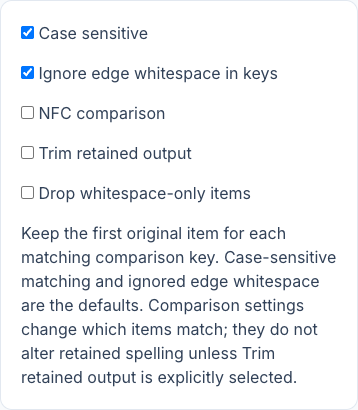
The default settings are Case sensitive on and Ignore edge whitespace in keys on. NFC comparison, output trimming and blank removal are off. The result updates as you type; there is no separate Remove Duplicates button and no removed-items panel.
Compare keys without trimming the kept spelling
Complete result and counts for the fixture above
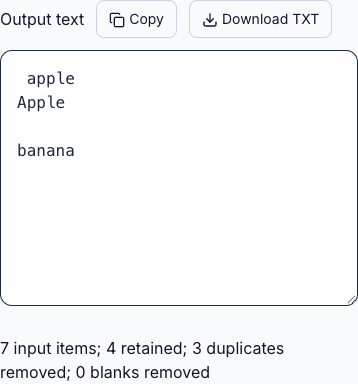
The first spaced apple stays as originally written. Its unspaced lowercase repeat matches the trimmed comparison key, while Apple stays because matching is case-sensitive. One empty representative remains, and the second banana is removed. Counts are 7 input items, 4 retained, 3 duplicate removals, 0 blank removals.
| Settings for the same fixture | Retained | Duplicate removals | Blank removals | What stays |
|---|---|---|---|---|
| Defaults | 4 | 3 | 0 | Spaced apple, Apple, one empty item, banana |
| Case sensitive off | 3 | 4 | 0 | Spaced apple, one empty item, banana |
| Case sensitive off; Drop whitespace-only items on | 2 | 3 | 2 | Spaced apple and banana |
| Previous row; Trim retained output on | 2 | 3 | 2 | Unspaced apple and banana |
Ignoring edge whitespace changes the comparison key, not the retained output. Trim retained output is a separate choice. Drop whitespace-only items runs before deduplication, so blank removals and duplicate removals are counted separately. They add up with retained items to the original count.
Copy the reviewed output or download TXT. If clipboard access fails, select the output manually. Input is bounded at 1,000,000 UTF-16 units and 20,000 physical items; this is a processing limit, not a promise about browser speed. CRLF and CR separators become LF in these line-based outputs.
Unicode equivalence and case need separate decisions
The word café can use a composed final letter or an e followed by a combining acute accent. With NFC comparison off, those source spellings remain separate keys. With NFC on, canonically equivalent spellings match and the first original spelling remains, unless output trimming is also enabled.
Unicode normalization defines canonical equivalence and NFC. NFC does not strip accents or treat every decorative compatibility style as ordinary letters. It is not a fuzzy spelling matcher.
Case-insensitive matching uses JavaScript lowercase, not locale-specific case folding. Ignoring edge whitespace does not collapse spaces inside an item. Choose exact matching for identifiers whose case or padding carries meaning.
Sorting by hand, or using a sheet
Use Sort Lines when you need to choose which spelling to retain yourself. English Ascending puts items in an explicit English comparison order. Ignore case retains accent differences; numeric text comparison orders digit runs such as item2 and item10, rather than parsing signed decimal values.
Look at nearby entries, compare their original meaning and remove only the ones you have decided are redundant. Collation can place visually similar or canonically equivalent strings together without making the deduplication tool's keys identical. This is a review aid, not an automatic equivalence test.
Sort changes first-occurrence order. If the original order determines which spelling should survive, deduplicate before sorting, or keep a separate original for the manual review. Random Order requires an explicit Shuffle action and is not useful for inspecting nearby repeats.
If the data is already in a spreadsheet, a formula can do the job. In Google Sheets, a formula such as this returns unique rows from a bounded range:
=UNIQUE(A1:A7)
Google's UNIQUE documentation specifies first-appearance order and explains that hidden differences such as trailing spaces can leave apparently repeated rows. The optional arguments also distinguish comparing columns and returning entries that appear exactly once.
Choose the complete row range if related fields must stay together, or a single column only when that column is the intended comparison unit. Test blank cells, formatting and your selected range in the sheet. This guide verifies TextToolbox fixtures; it does not claim that sheet comparison rules are identical to our case, trim and NFC switches.
Avoid deleting meaningful structure
A quoted CSV field can contain a line break. Splitting such a file into physical lines and deduplicating them can damage its records. See the CSV column workflow for parser-based extraction and reordering.
A plain comma-delimited list can be converted using Split Text only after checking that quotes and embedded delimiters do not need parsing. Its default retains empty items and spaces; cleanup switches are explicit.
Do not always trim first. Use key-only edge handling when the first original spelling should remain. Do not always remove blanks either: a blank can be a meaningful separator or missing value. The Remove Empty Lines modes distinguish exactly empty from whitespace-only rows, but they still operate on physical lines.
Finally, deduplicating email-like strings does not validate addresses, establish consent or guarantee deliverability. Keep your original source and review the meaning of the chosen key before replacing any list.
Recommended articles
Productivity
How to Remove Emojis from Text Without Losing Names
Choose a sequence-aware emoji filter, preserve multilingual names and text symbols, and compare tested whitespace settings before copying a reduced draft.
Productivity
How to Extract and Reorder CSV Columns Without Losing Field Data
Follow tested CSV extraction and column-swap examples. Preserve quotes, spaces and identifiers, choose the right output and avoid unsafe line-based cleanup.